
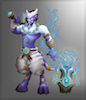

But the latest version of WMV does support the inclusion of custom files and this allows you to extract and display Legion models, if you know how and if you happen to have a copy of the Alpha on your computer. It's a bit long if you've never done it before, but it's not like it requires any professional expertise, so I'll detail the steps below.
First of all, how to configure WMV to include additional or custom files:
1. Download and install the latest version of WoW Model Viewer. It's only recent versions that have this feature.
2. Somewhere on your computer create a folder to house your custom files. Call it whatever you like. Being sloppy, I keep mine on the desktop and it's called "WMV Custom".
3. Extract your custom files or create custom skins (or models if you're talented enough to do that. I have NFI how to create those!). I'll explain more about those in the second half of the post, so ignore that for now.
4. Within your main custom folder you need to create subfolders that mimic the folder / tree hierarchy that you see in WoW Model Viewer. For example, if you were adding a custom skin for the newer raptor model, you'd first create a "creature" folder (case doesn't matter), then within that create a folder called "raptor2", and then place your custom skin within that.
5. Launch WoW Model Viewer. Once it's loaded, go to Options -> Settings... Under "Folder to explore for additional files" you'll have to hand-type the full path for your folder, with backslashes for the dividers. I've submitted a patch that enables a folder picker dialogue so you don't have to type it out. Hopefully it's added soon.
6. If any of your files have the same names as real game files and are intended to replace them in WMV, you'll also have to select "Keep custom files" in the conflict policy.
7. Restart WMV and it should now include your custom files among the real game database files. If the model supports multiple skins then you should see your custom skins in the skin selector below the model. The main skin selector only allows the selection of one skin at a time, however. If the model requires multiple skins for different parts) like a dragon requires three skins, for head, body and wings, then refer to the "All skins in folder" selectors on the far right. They'll allow you to configure the skins for different model parts separately.
How to extract Legion model files for viewing:
1. Get a copy of the Legion Alpha / Beta. If your account isn't flagged for the beta I'm not sure how to do that right now. If you have a friend who has access, all they have to do is log into their account on your computer once to initiate the download, but maybe there are easier ways now. Please don't post links to any unofficial copies of the game, however.
2. Download CascView. This neat little program is what you'll be using to extract the model files from the database.
3. You also need an up-to-date "listfile", which contains a list of all the files you want to extract. The most updated one seems to be: https://github.com/bloerwald/LegionFile ... master.zip One you've downloaded that, just grab listfile.txt from it and trash the rest.
4. Run CascView. Select "Game Storage", and then select wow_beta from the list of game copies. In the "Listfile" menu below, find and select the listfile that you downloaded just before. Hit OK.
5. Once it's finished loading the database you should see a hierarchy of all the game files. Any NPCs (not character models) will be under "Creature", just as they are in WMV. In order to locate your your desired model, you're going to have to guess what it's called. Sometimes this is obvious (the new raven is called "raven2"), sometimes not (the new unicorn is called "horse2", the new wolf is called, simply "worg", the dog-hydra is called "guarm").
6. In your custom directory on your hard drive, create a folder hierarchy for the models you're interested in, then drag all the files into their appropriate folders. These files will include .m2 (model) files, .skin files, .blp (texture) files.
7. Start WMV and (assuming you already configured it) you should see your models. Some may initially appear white, which will be because WMV hasn't been supplied with the relevant Legion spreadsheets to tell it which skins to load for the model. Instead, use the skin selectors on the bottom right to select the skins for your model. Some models will only take one, others may take two or three (especially winged creatures!).
I hope this wasn't too confusing and is a good start